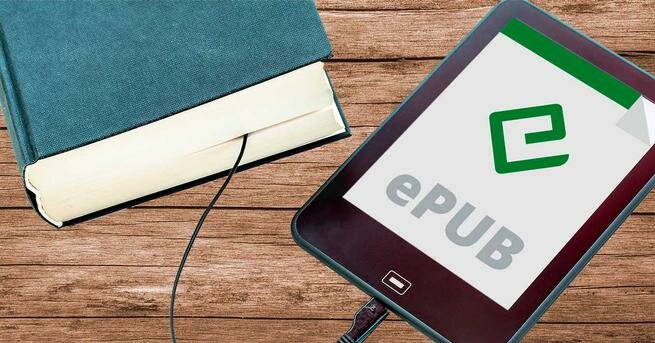
The Kindle is the most popular electronic book reader that we can find. Manufactured and sold by Amazon, this device is one of those that offer the best quality/price ratio, being a product accessible to almost any user and that, with a little care, can last for years and years. This ebook reader is designed to read the electronic books that we buy on Amazon. But it also allows us to add ebooks purchased and downloaded from other websites by connecting it to the computer. Of course, with a big handicap, and that is that it is not capable of reading the most popular standard format: EPUB.
The Amazon Kindle It mainly works with two ebook formats: MOBI (the oldest) and EZW3 (the newest, and recommended). If we download the ebooks directly in these formats, we can copy them to the internal memory of the electronic book and they will automatically appear in our library. However, if we download the books in other formats, we will have to convert them to the previous ones first. For this, there is an excellent software called “Caliber”.
But what if I have an EPUB and I can’t (or don’t know) convert it with Calibre? Although people do not know it, Amazon allows us to do “a little cheat” to upload EPUB files to your own Kindle. And, furthermore, officially, without tricks, programs or third-party websites. Let’s see how it’s done.
Use the Kindle app
The first of the ways to send EPUB to Amazon Kindle is through the Kindle app for Android, iOS or iPad OS. To do this, what we must do is download the Kindle app on our device, and log in to it with the same user account that we have in the electronic book. Next, we will simply download the EPUB on the mobile, and save it in the internal memory.
Now, using the file explorer, we select it and use the “Share” option of our device. One of the options that will appear will be «Send to Kindle«. We click on it, select our electronic book, and send it. In the case of iOS, in order to select the device, we will have to deactivate the “Add to library” option.

In a few seconds, the EPUB will have been sent to Amazon’s servers, processed, and converted so that it can be read directly on our reader.
By mail
Something that very few people know is that e-book readers have an associated email address, through which we can send ourselves any type of file to upload directly to the Kindle without having to convert it to any format or connect the device to the PC. To see the address of this, we have to enter the Amazon Kindle section, we will enter the “devices” section, then we choose “kindle”, and from here we can view all registered ebook readers on our account.
We select the one we want, and we can see its details, including the email (@kindle.com) associated with it.

Once we know this email, we simply have to open our Gmail and send an email to that address with the file, in epub format, that we want. Once the email is sent, we will see a message from Amazon, where it will ask us to confirm if we have really sent the file. We check, and voila.
Now all you have to do is wait a few seconds for the Kindle to receive the ebook converted to a compatible format. In case there is not, we can force an update with the “Sync” button at the top.