The D-Link EAGLE PRO AI G415 4G router is a really interesting piece of equipment for the domestic environment, where we need a permanent Internet connection in our home due to teleworking, in addition, thanks to the possibilities of the firmware, we will be able to configure a complete WiFi network High performance Mesh in a very simple way, since it is compatible with the rest of the manufacturer’s EAGLE PRO AI family. Today we are going to show you in detail what the firmware of this router is like, so that you know in advance all the options in case you are going to buy it for your habitual residence or second residence.
What configuration options are available to us
The first thing we should know is that the firmware of this router D-Link EAGLE PRO AI G415 It has the same appearance and the same options as other equipment in the family, however, this router incorporates unique features as it is a 4G LTE router, so we have new setup menus compared to the R15 router and the M15 Mesh Wi-Fi system that we have seen previously in RedesZone.
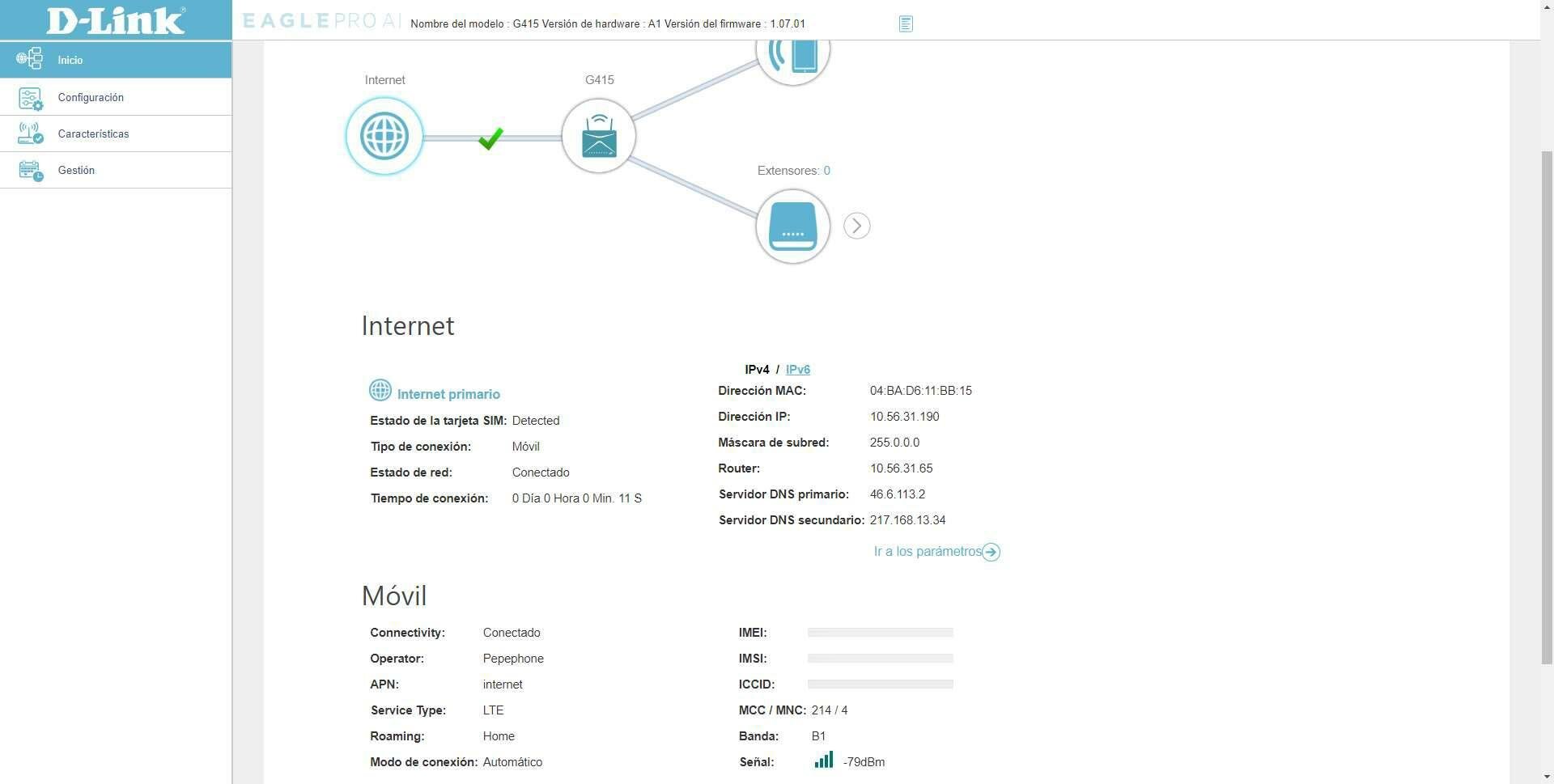
In the start menu of this equipment we can see the general status of the Internet connectiona very important aspect is that we have one Gigabit Ethernet port for the Internet WANtherefore, we have dual WAN (Physical WAN to connect a network cable, and the secondary WAN which is the 4G LTE network). Thanks to this, we will be able to have a very fast internet connection via fiber optic using the RJ-45 port of the WAN for it, but we are also going to have a maximum reliability since we have the 4G connection as backup of the main connection. The router will always establish communication with the mobile phone antenna to have the 4G connection available at all times, although if we have a connection on the WAN port it will use this. In this main menu we can also see the general configuration of the router, as well as the wired and wireless clients that are currently connected to the router, as well as an “Extenders” section, which is where we can see the Mesh nodes if we have added any.
In the section of “Setting» We can see different sections to configure the router as we want, below, you have all the sections and what each one of them is for:
- Attendee: will run the router’s initial setup wizard.
- Mobile: this is where all the configuration options related to the 4G LTE connectivity of the router are located, we can choose the technology to use (3G or 4G), define if we want data roaming, and also the APN configuration to connect to the Internet without problems.
- failover: If we want to have this important functionality, here we can configure how we want the router to detect that the main WAN has been down, and that is that we can use the typical ICMP ping or make a DNS request.
- Internet: This is where we will configure the Internet connection of the Gigabit WAN port, we can also configure the VLANs and the IPv6 protocol.
- wireless: If you need to change the SSID, password, authentication type or activate the guest WiFi network, this is where you should go to configure all of these in detail.
- Net: This is where we will configure the IPv4 and IPv6 local network, the DHCP server and other important options for the home local network.
- D-Link Cloud: through the firmware it will only tell us if we are linked to the cloud or not, to link the router with the cloud it is absolutely necessary to do it from the mobile app.
- Operating mode: we can choose between neutral router mode using the Gigabit WAN port, or choose the “mobile router mode” mode to use 4G connectivity as the main one.
In the section of “Characteristic» we can see all the services and advanced configuration options of the router, below, you can see all the menus that we have available:
- parental control: This is where parental control is configured, both time-based and content-based. We can configure different profiles and later apply them to the WiFi or wired clients that we want.
- mobile data limit: If we have a data rate with a data limit and then they charge you for the excess, then here you can configure a data consumption limit so that you do not get surprises on the bill. You will be able to configure the amount of GB, and when it will notify us that we are reaching the threshold, in addition, it will allow us to notify us by SMS message.
- SMS: we can activate or deactivate this function, we can also see the received and sent SMS messages.
- PIN: This router allows the SIM card to have a lock PIN code, if we restart the router we will have to enter this PIN code every time we start it. We also have the possibility of disabling the SIM PIN directly from the router, so that if we restart it it continues to work without having to enter this PIN.
- US$D: we can send commands through the mobile broadband network.
- QoS: If you need to prioritize the network traffic of certain devices over others, thanks to the QoS incorporated in this router we can do it easily. We only have to set the real speed of the Internet connection, define the wired or WiFi equipment that we want to prioritize, and apply the changes.
- firewall: All the options regarding DMZ, IPv4 firewall, IPv6 firewall and other security related options are here.
- port forwarding: this is where we can open the ports to host servers in our house, remember that this opening of ports will only work if you have a public IP on the WAN. Generally, in 4G LTE networks we do not have a public IP, but we are behind the CG-NAT.
- static routes: If we need to access other subnets, here we can create static routes for both IPv4 and IPv6 networks.
- dynamic DNS: you can configure your dynamic DNS from here, we only have No-IP and DynDNS available to use. The first of them has a free version of the service, the second is always paid.
- Fast VPN: This router incorporates a L2TP-type VPN server over IPsec, so we can connect remotely to our local home network easily and quickly.
All these configurations and characteristics of the firmware of this D-Link EAGLE PRO AI G415 router are explained in the following video:
As you can see, this home router with 4G LTE connectivity is really complete, both in terms of technical features and firmware features. In addition, thanks to the fact that it is from the EAGLE PRO AI family, we will have the possibility of forming a complete high-performance WiFi Mesh network with other routers, WiFi repeaters and WiFi Mesh systems from the manufacturer.