There are several symptoms that someone has connected to your WiFi network, although the most common is that the connection speed is slow. And obviously, this can be a major problem.
And although the entry of intruders implies a security problem for which you must act, it is also possible that it is not someone outside the home, but rather your own devices that are collapsing the network. Thus, know what tools to use to find out It is key and here we will learn about some of the most effective ones on Android.
Check it out quickly with one of these apps
Although it is possible that the app of your operator or router They can be used for this check and even to eliminate the devices that are directly connected, there are other universal methods that go through downloading apps from Google Play.
Via “Fing – Network Scanner”
The first one is Fing, the most popular and easy to use. Although it contains advanced paid functions, for this specific use it is completely free and does not even require us to register with it. What is important to note is that grant it access permissions to the location to make your scan more accurate.

Fing – Network Scanner
You must be connected to the WiFi network you want to scan and once you open it, being on the home screen (in the tab General description), you’ll see a button called Scan current network. You must press that button and immediately you will begin to see all the terminals that are connected to this network. From mobile phones, tablets and computers to home automation accessories such as smart light bulbs or vacuum cleaners.

By clicking on each of these devices you can get accurate information about them as the IP address and Mac address. It also informs you about the type of device it is, brand and even the exact model. It even allows you to edit your name if it does not match or causes you confusion.
As expected in an app of this type, it is allowed remove device and thus lose your connection to the WiFi network. To do this, you only have to be in the details of the device and scroll to the section Manage this devicewhere you will find this and other options with which to manage the connection of the device in question.
Via “WiFiman”
Not as popular, but with very good reviews, we found WiFiman. In fact, it also has a interface that guides you easily to use all your tools. Like the previous one, it is recommended that when we download it we grant it access permissions to the location.

WiFiman
As we already told you, the app offers other tools such as a speed test or analysis of the state of the network, but what concerns us now it’s in the tab Search. This is where you will find the list of connected devices with their corresponding IP.

Perhaps in detecting device brands and models it is not as accurate as the previous app, but it also usually recognizes the type of device it is and, entering, you get relevant details such as your MAC address, Ping, or packet loss. It is also allowed to see which ports are open.
However, unable to remove devices from the network from this application. Not at least in a simple and effective way, being one of the obvious shortcomings of the application, since in the end it is more of a query than anything else. Hence, we recommend the previous one more and we emphasize tips like the ones we will see in the next section.
Security measures to prevent them from entering your WiFi

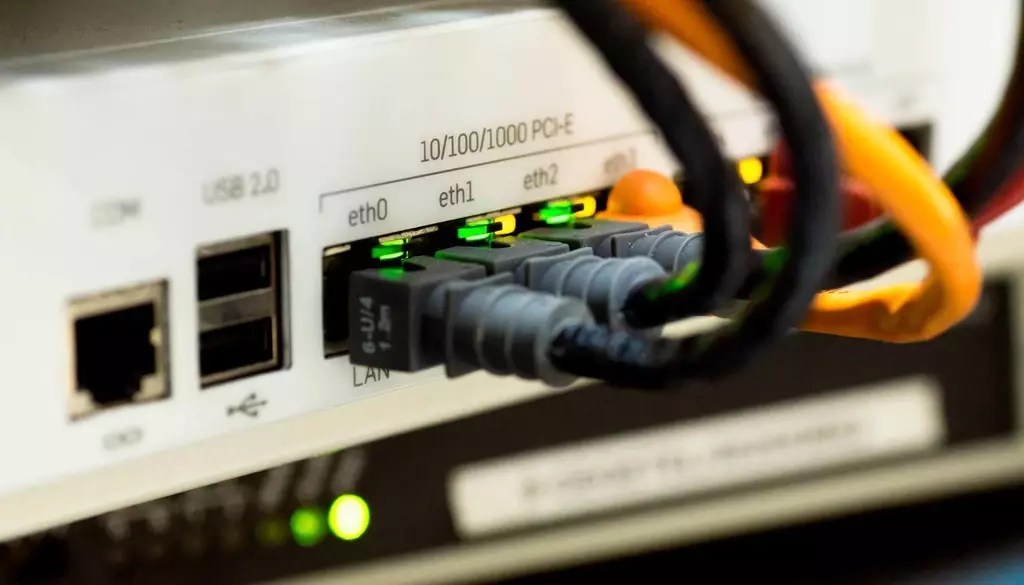
As is often said in this area, the safest way to not have security problems in your WiFi is to not have WiFi at all. Removing the paradoxical and even comical aspects of this situation, there are a series of tips to protect the router and its connections that are very appropriate in this case.
- Change network name and don’t leave the generic with references to your operator. It may seem the most comfortable way, but it is not advisable if you want to prevent them from accessing your Wi-Fi, as we have already seen in some cases of password leaks based on the algorithms used by the operators for this choice.
- Changing the WiFi password goes hand in hand with the previous tip. And in fact, it is advisable to do it from time to time, always following security rules for choosing a password. Basically that they are not predictable (names, specific dates, sequences of numbers), that they are long and that there is a mixture of alphanumeric characters with upper and lower case letters and even symbols.
- Change WiFi security Entering the router configuration is another element to take into account to avoid that, through specific tools, they can get to decipher the password to access the WiFi connection.
- Creating a guest WiFi will not only help you to avoid giving the usual WiFi password to people outside the home, but it will also help you set limits on their speed, preventing them from slowing down the connection and managing these connections more easily, being able to deactivate this network at any time.
- Hide Wi-Fi so that it does not appear when scanning the available networks can also be helpful, although it is also somewhat more uncomfortable, since you will have to manually enter data such as the SSID and the password when connecting a new device.
- Always stay in control of your devices that connect with tools such as the above is key to knowing when to act and remedy. Therefore, we recommend that you have these applications installed on your mobile and review them from time to time and especially when you notice connection problems.
- Turn off WiFi when you leave. Not perhaps if you go out to do the shopping, to have dinner or to work, but yes when you go on a long trip of a few days. In this way, in addition to saving energy, you will prevent them from taking advantage of your absence to access the WiFi.