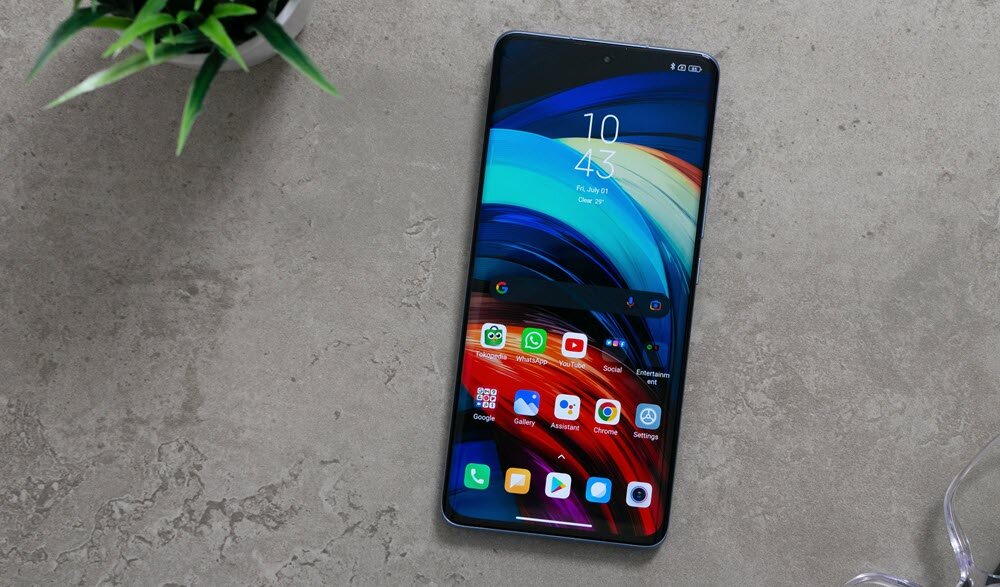
Do you want to change the time format on your Xiaomi mobile? You may have configured the mobile to show you the hours as AM and PM, and you want to return to the 24-hour format.
Don’t worry, you can make this change in one simple step. You just need to take a look at the settings and set the format you want for your Xiaomi.
How to change the time format on Xiaomi
Xiaomi gives you many options to configure different mobile options and customize it under the MIUI layer. So you may find it difficult to find a way to change the time format on your Xiaomi mobile.
A simple way to find this option is by typing “Time” in the mobile Settings search engine, or by going directly to Additional settings >> Date and time. In that section, you will find a series of options to configure the time that will be displayed on the device, whether you want to enter it manually by choosing a time zone, or taking the time from the network.
and you will see that under the Time Format option there is the option you need to change the AM and PM format to 24 hours. As you can see in the image, you only need to display the menu to see the available options: 12 hours (AM/PM), 24 hours and Automatic.

In this case, you have to remove the 12 hour option and mark 24 hour as the chosen format. Once you make that change, you’ll notice that AM or PM no longer appears when the time is displayed in the top bar. And on the other hand, this format will be respected both in the clock widgets that you add on the home screen and in the dual clock display.
So once you change the time format from the option we mentioned, you will no longer need to take any extra action, since the whole system will change to this new criteria. Keep in mind that only the way the time is displayed will change, but there will be no change to the rest of the time settings, for example, the time zone.
And of course, it is an option that you can change as many times as you think is necessary, following the steps that we mentioned before.