Whether you’re looking to follow directions or virtually explore a distant place, Google Maps has a bunch of useful tools to help you.
But even with its more obvious features, there are a lot of things Google Maps can do that you probably didn’t know about. From being able to dress up your Pegman mascot in a variety of outfits to see what a place looked like in the past; Here are five things you didn’t know Google Maps could do.
1. Dress Up Pegman
If you go to Google Maps on your PC, you’ll see a little yellow humanoid shape in the lower right corner. This wannabe Simpsons character is called Pegman, and by picking and dropping them on the map you’ll load them into Streetview if the option is available.
But, pegman will look a little different in some areas. If you go to Buckingham Palace, Windsor Castle or Balmoral Castle they will turn into Queen Elizabeth II (the current monarch of the UK). Meanwhile traveling up to Loch Ness, Pegman resembles a strange green monster with a hat.
There are others, like Pegman jumping into a spaceship as you drag them over Area 51, and probably many more we have yet to discover. At one time Pegman was turned into a Lego minifigure in Legoland, but it appears to have been removed.
Next time you’re out exploring Google Maps, see what Pegman turns up when you walk around.
2. Measure Distance
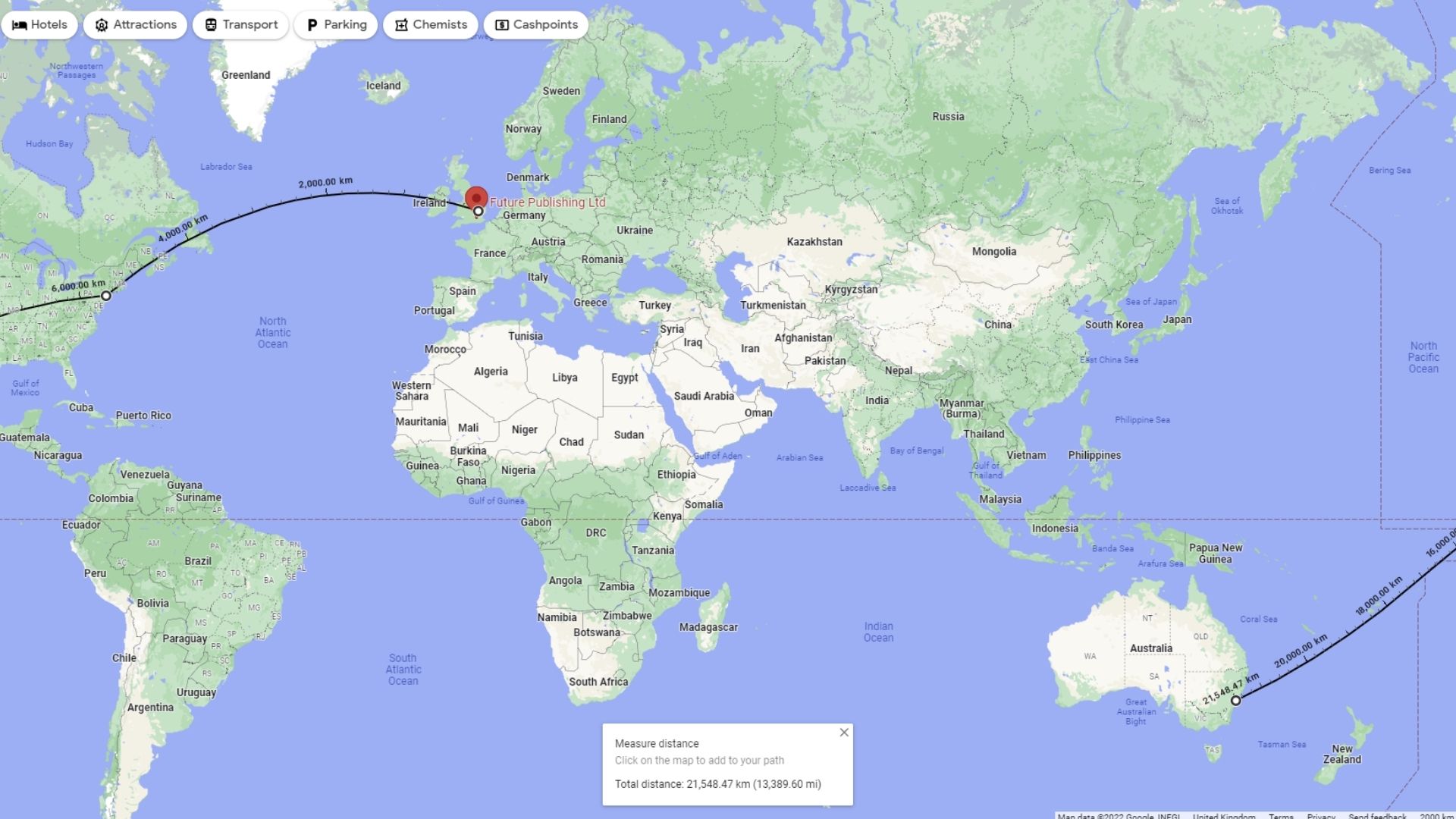
You can use Google Maps to measure the distance between any two points on the Earth’s surface, or you can even create a route made of multiple points to measure between multiple locations at once.
Here we are measuring the distance between our London, New York and Sydney offices. (image credits: future)
Whether you are on PC or smartphone, the process is extremely simple. You open a menu by either right-clicking on a space and selecting Measure distance (if you’re on a PC); Or you can use your phone to tap a point on the map, tap it again, and then choose Measure Distance from the menu that appears.
If you want a more in-depth step-by-step guide, you can check out our How to Measure Distance on Google Maps for some help.
3. Remember Where You Parked
Everyone who regularly drives a car has parked it somewhere, only to forget where it was afterwards. Google Maps can take all the hassle out of losing your parking space by allowing you to save location temporarily so that you can be directed back to it later.
Once you’ve parked, you can open Google Maps on your smartphone and tap on the blue dot that marks your current location. This opens a small menu that includes Save Parking as a third option. Tap on it and your parking space will be saved in Google Maps for later use.
If you find your way around without needing directions, you can delete this saved point by tapping > More info > Clear to delete it.

(Image credit: Shutterstock / Pero Studio)
4. Keep a Log of Where You Go
Google won’t just remember the places you ask it to, it’ll actually keep a log of every place you’ve traveled with your smartphone (provided the app is installed).
By opening the Google Maps app, tapping on your profile picture, and then selecting your timeline, you can scroll back through the calendar to see when and where you traveled on a particular day.
If you didn’t know the app could track you like this, you’re probably a little sketched out and we don’t blame you, we felt exactly the same way.
To turn off this feature, you can reopen the Timeline page and press the menu button (three dots) in the upper right corner. Select Settings & Privacy and scroll down to Location Settings. Here you can toggle Location History on and off, delete all of your Location History, or delete data for specific dates only.
You can also set it so that location history is automatically deleted after a certain period of time.
If you choose to keep this feature enabled, it can provide some benefits. If you want to remember where you went on your vacation trip or the name of the cafe that makes really good coffee you went to the other day, this timeline tool can help remind you by telling where you were on a certain date.
5. Take You Back in Time
We imagine some of you wish you could go back in time before you realized Google Maps is tracking you, or at least go back to turn the feature off earlier.
Unfortunately, we can’t help it, but if you’re willing to go back to Google Maps it might allow you to see what the location looked like in the past.
Just go into street view and in the top left corner (on PC) you will see the date the current image was taken. By pressing it you can scroll back over the years to see what the location looked like at various points in the past decade.

Wondering if we can combine google maps with flux capacitors? (image credits: Universal)
This feature is mostly reserved for street scenes rather than user-uploaded images, and the range of dates you travel will vary.
Few places like Times Square in New York can be traced back to more than a dozen different times in the past decade. Meanwhile, this location in the Yorkshire Dales in the UK has only been visited by Google once – all the way back to 2009.