Not only does the Google Pixel series come with the update from day one, but it also comes with a slew of features that you might not be using or need to use more often.
Sure, there are more feature-packed versions of Android, but the simplicity of Google’s internal vision of what a mobile OS should be is one of the major reasons fans love the Pixel series. You also get to take advantage of some functions you can’t get anywhere else, including advanced assistant integration and more.
We’ve tried to leave out a few obvious candidates like Call Screen and Hold for Me, as these are known to be key selling features. Instead, we’re sticking with options you probably didn’t even know existed. So with that in mind, here are some of our favorite Pixel features that we think aren’t often talked about or mentioned.
Video – 10 Google Pixel Features You’re Not Using Enough
Subscribe to 9to5Google on YouTube for more videos
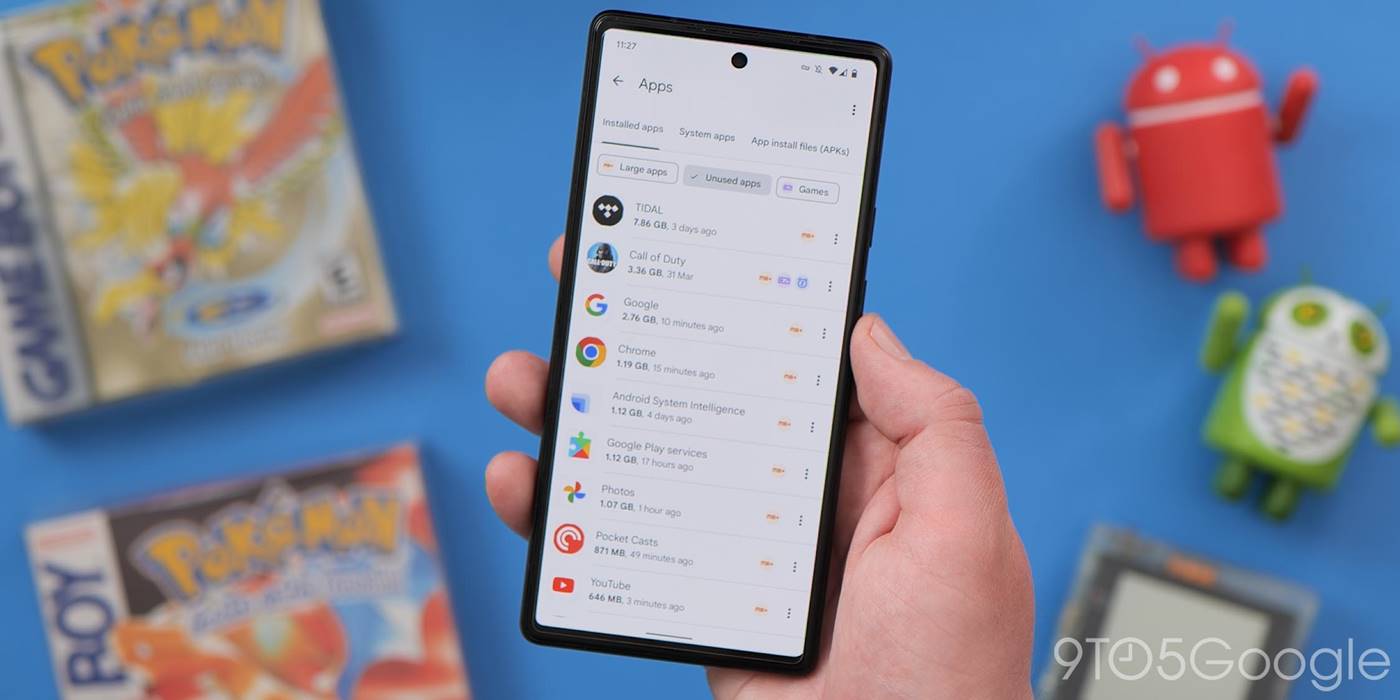
delete multiple apps at once
On a Pixel phone or any phone with Files by Google installed, you don’t have to spend ages trying to remove unwanted apps one by one. This timesaver is great if you want to get rid of space-hogging games and apps all at once instead of using the slow process of finding apps, opening individual app settings, and then hitting the “Uninstall” button. Along with some of the other features of Files by Google, you can target the biggest unused apps on your phone and easily delete them all in seconds.
screen blackout at night


The benefits of an always-on display certainly outweigh the downsides, but even at night at the lowest brightness settings, it can be glaring or distracting. A simple solution is to disable this feature on your Pixel. Thanks to the Digital Wellbeing controls, you can set your Always-On display to be disabled while you sleep.
As long as you have a Bedtime Mode routine set up, it’s as simple as toggling the option, and the Always-on display will be deactivated during preset hours. Once your alarm goes off, it turns back on and works just as it should. There are also some potential battery-boosting benefits here in case you don’t feel like charging or even forget to charge your phone overnight.
audio adjustment

Being able to change the sound balance on your Pixel is a great feature, even if you don’t listen to audio often or watch videos on your mobile regularly. This is a particularly useful feature for the Pixel 5 series, which has a horribly under-display earpiece speaker that doesn’t get loud enough. This applies to any connected Bluetooth or wired audio hardware, so it’s one you should play with sparingly.
Rule

While Tasker is undoubtedly the automation king on Android, you’ll want some basic automated functionality without too much depth. The Rules feature on Pixel phones gives you some basic tools to automate simple things. Don’t expect full device control; Instead, it’s limited to just being able to adjust your ringer volume and Do Not Disturb mode settings.
Triggers you can offer include Wi-Fi or GPS location. Sure, it’s not comprehensive by any means, nor is it a time-saver for everyone. However, it’s a nice little touch to have baked in and allows you to set up rules for work, home, and any other place you want.
Quick screenshots, image sharing and text selection


It’s technically three things all rolled into one here, but bear with us, because it’s all activated in the same way. Android 11 includes some powerful new toggles in the Recents app menu, plus with Android 12, you get some interesting time-saving functions that, in all likelihood, you’re not using as much as you should.
Let’s start with the quick screenshot toggle as this is something that everyone can take advantage of immediately. When sliding into the main app preview carousel, you can tap it to see a screenshot of the app right away.
It avoids holding down the power button and volume key combination while getting a fullscreen image of the app in question. In Android 12, you’ll still need to use the key combination method to access scrolling screenshots with assistive apps. However, it is a great way to share something between apps and services.
The Selection tool is a bit more powerful because it includes some neat tricks you probably never knew existed. Tapping the “Select” toggle lets you simply point to any on-screen text. That alone is a nice addition, but it offers some other great capabilities, courtesy of Google Lens and Assistant.
Highlight foreign text and you may be prompted to translate into your local language, while other contextual prompts including “copy,” “share,” and “search” are also offered. The latter takes you to the Google app and searches for Highlight Query.
A bonus exclusively for Android 12 users is the more relevant tools in the recent menu. If an app or webpage has pictures, you’ll see a small picture icon that you can tap to quickly copy or save the image. Drag the icon downwards to open a small share sheet that you can send directly to your contacts or your app of choice. There’s also a Quick Hyperlink tool that lets you copy links from webpages or, like the image-sharing tool, you can drag down onto a pop-up sharing sheet.
one-handed mode


It took up to Android 12 for the Pixel to gain dedicated one-handed mode, but it’s a neat option that you might not use as much as you should. As phones get bigger, being able to reach and hit the upper levels of your screen becomes more difficult with each passing year.
One-handed mode on the Pixel is a feature that’s worth activating on your phone even if you don’t use it all the time. Just swipe down on the navigation bar and everything that would normally be out of reach is now within your grasp. This isn’t helpful all the time, but it is useful because accessing all parts of the app UI requires no-hands gymnastics.
smart lock

If you’re sick of constantly entering your PIN or messing with the sometimes finicky in-display fingerprint scanner on your Pixel 6, you should try using Smart Lock. This feature has been around for a long time, but it’s still something that not all Pixel owners use to save time on unlocking and accessing their phones.
Smart Lock has a few options for you to choose from. You have on-body detection that uses device sensors to determine whether your Pixel is in your pocket or your hand. You can set up the feature using Trusted Locations, so you don’t have to enter your PIN or use biometrics at home or at a location of your choice. There is also the option of a trusted device that will remove the PIN and biometric requirement when connected to specific Bluetooth accessories.
driving mode


Using your phone while driving is not only unnecessary, it is dangerous unless you need turn-based navigation assistance. Android Auto and Android Automotive certainly remove some of the risks but removing the distractions is still a better solution. Fortunately, Android has a built-in driving mode that can be activated automatically when you are in a motor vehicle.
As an extension of Do Not Disturb mode, there are a few ways to activate it. Your phone can detect when you are traveling by road or at a certain speed. Or it may toggle when you connect to a Bluetooth device in your car. This is a great way to eliminate any distractions while retaining the ability to use Google Maps while your calls, messages, and regular notifications stay on hold until you get to your destination.
app hang
Removing distractions is something that is easier said than done. Since Android 9 Pie, the Digital Wellbeing Suite has provided an option called “Focus Mode” that can be customized to block your most distracting apps. When activated, all app notifications will be muted until the time period elapses.
It’s great for weekends and evenings, but if you want to quickly and effectively mute an app on your phone you can “pause” it when needed. Just long press any app and you’ll see an hourglass icon – tap it and it’ll be completely muted until you try to open it again by “unpausing” the app again. do not activate.
always on vpn

A good VPN is always something you should have access to, no matter what technology you use. If you’re a Google One subscriber, there’s a free VPN at the 1TB storage tier ($9.99 per month). It works just as well with other VPN providers, and for added security, you can block any internet connection unless you are also connected to a VPN service. Your data speed and network performance may vary depending on the VPN provider you choose, but it is a solid way to increase device security on known, unknown, and mobile data networks.
What’s your favorite pixel feature that doesn’t get mentioned enough?
If you use the Google Pixel, what’s your favorite lesser-known feature or function? Do you use some of the options that you think deserve more attention? Tell us in the comment section below.
FTC: We use income generating auto affiliate links. More.

Check out 9to5Google on YouTube for more news: