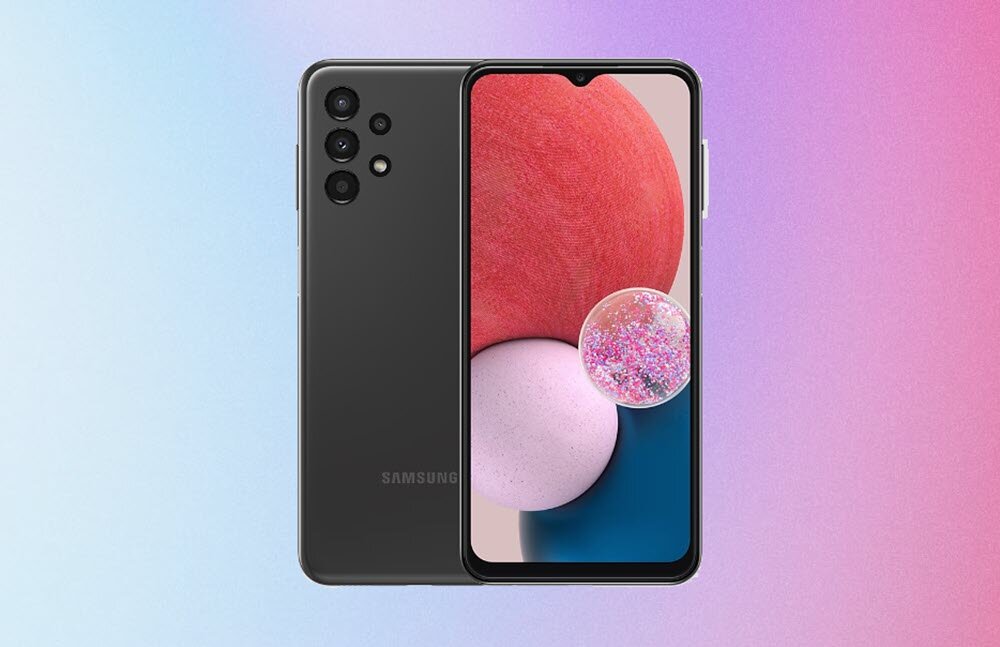
There are many ways to turn on or turn off the screen of your mobile device with operating system AndroidFor example, the most classic is by touching the physical button that is normally located below the buttons that raise and lower the volume; Another option would be adjusting the smartphone so that when you pick it up, it turns on automatically; however, millions of users consider that there is a more comfortable mechanism, which consists of tapping the touch screen twice to turn it on or off. From Depor we will teach you the steps so that you learn to activate it, so take note.
This is the “Double tap to turn on the screen” function, which is only available on some devices mobiles of the medium and high range, likewise, the process to activate it and even the name of this tool may vary slightly depending on the brand and model of your equipment, for example, the option in Xiaomi is like “Tap twice”.
THE TRICK TO TURN ON OR OFF THE ANDROID SCREEN WITH TWO TOUCHES
- First, enter the “Settings” or “Settings” of your mobile Androidyou locate it with the icon of a cogwheel or gear.
- Now, click on the “Lock screen” section.
- Finally, activate the switch labeled “Double tap to turn screen on or off”.
THE STEPS AT SAMSUNG
- Access the “Settings”.
- Here you are going to scroll down until you locate the “Advanced functions” section, press it.
- The next step is to click on the “Motions and gestures” subsection.
- Finally, activate the switch that says “Double press turns screen on”.
So you can hide notifications on your Samsung smartphone
- Open the “Settings” of the Android phone.
- Go to “Notifications”.
- Swipe down and you will find the “Notifications (Lock Screen)” option, tap on it.
- Flip the switch that says “On.”
- At the bottom, select “Details” and bring the “Transparency” slider to the maximum.
- As a final step, turn on the other switch labeled “Hide content”.
In this way, every time you receive a message or notification, its content cannot be viewed. Also, this process is reversible and you don’t need any additional app or APK to reset the notification view.