Cleaning up your photo requires specialized software and skills to remove unwanted objects and text, but these days AI has led to features like Content-Aware Fill in Photoshop that let anyone edit it in just a few clicks. lets you. If you don’t have a Photoshop subscription, there is a free web and mobile app called Cleanup.Pictures that you can use.
This article is a step-by-step tutorial on how you can use Cleanup.Pictures to easily remove things like objects, blemishes, people, and text from a photo with just a few clicks.
Table of Contents
An Introduction to Cleanup. Picture
In photography, there is a careful balance between the elements you want in your image and the elements you want to leave out. This balance requires attention to enhance your photography skills, but it is not always possible to achieve your desired composition. There are often unavoidable artifacts, such as people or background objects, that distract from the main purpose of the image. Fortunately, there are powerful tools like Cleanup.Pictures to help you post-process these images.
Cleanup.Pictures, at a basic level, is a free website and app that enables you to remove elements from an image. The website can be accessed by going to “Cleanup.Pictures” using a search engine, and the feature is available in the iOS app ClipDrop.
The ease of use of the tool is evident when you first visit the website. If you want to get started right away, you can simply upload an image from the site’s home screen by dragging and dropping your files or searching.

If you don’t have an image, but you still want to test out its functionality, Cleanup.Pictures has some example images available for you to test out. The app is similar in its simplicity, and it’s packed with quick, powerful removal features.
A powerful freemium tool for object removal
The free version of Cleanup.Pictures currently has no limit on the number of images, and export resolutions are limited to 720px at the longest. It is suitable for some social media platforms, but is not suitable for print at the proper dimensions with today’s printer resolutions.
The paid (Pro) version is $48 per year or $5 per month, though you can sometimes find it on sale (as at the time of this writing) for $24 per year. It has no limit on the number of images, no resolution limit, and provides access to high quality refiners.
If you’d like to try Pro on your images, there’s currently a two-week free trial available.
Read this step-by-step guide on how to use both versions of Cleanup.Pictures to remove unwanted elements from an image.
How to Use the Cleanup.Pictures Web App
Let’s take a look at how the web app can be used to remove the white fence from this landscape photo:

step 1. Go to the easy-to-remember URL Cleanup.Pictures (or search for “cleanup pictures” using a search engine if you forget).
Phase 2. Look for the box that says “Click here or drag an image file.” Use this to upload any image you want.

step 3. Once you have uploaded your image, the Brushes module will open. From here, you can resize your brushes, zoom in to refine small objects, see before and after versions, and toggle between High Definition (Pro) mode and Standard Definition. Huh.
step 4. Choose a brush size that is appropriate for the element you want to remove. In general, it’s a good idea to have a brush slightly larger than at least one dimension of the element you’re removing, but you can experiment to find the best one.

Step 5. Paint over the element(s) you want to remove and wait for Cleanup.Pictures to work its magic. ,Necessary: If you’re using Pro Mode, you’ll need to press the “Clean HD” button to the right of the Brush Size module when you’re finished with your selection.) The removal step may take a few moments.


Step 6. view result. If you’re not happy with the result, press the “Undo” (left-pointing arrow) button next to the Brush Size module. Try making a larger or smaller selection of the element you want to remove until you have results you’re happy with. Keep in mind that some elements are harder to select and remove than others (i.e. removing the blue dot from a white background is far easier than removing a watch from one’s wrist).

Step 7. Once you have finished deleting the elements, hit the “Download” button in the upper right to download your image. If you’re using the free version, keep in mind that the size will be limited to 720px on the longest side.

See before and after here:

Cleanup.Pictures did a great job removing the fence in this image, and only a few selections are needed to produce a good result. The zooming feature really helped in this example, and it allowed the details of the fence to be selected.
How to use the Cleanup.Pictures app
Now let’s see how we can remove pole and flood light from this picture of house using the same technique in ClipDrop app:

step 1. Install ClipDrop app from iOS App Store.
Phase 2. Under “Start with a photo,” select “Cleanup picture.”

step 3. Select the image you want to work with.
step 4. Once you have selected your image, the cropping module will open. Use this to crop your image if you wish.

Step 5. Toggle between HD and SD modes in the Cropping module. According to the Cleanup.Pictures FAQ, a Pro subscription should work on both the mobile and desktop versions, but contact support if your Pro subscription doesn’t show up on the mobile app after signing in.
Step 6. Press “Continue” to open the brushing module. In this module, paint over the element(s) you want to remove and wait for Cleanup.Pictures to work its magic. This step may take a few moments, so be patient.

Step 7. view result. If you’re not happy with the result, press the “Undo” (left-pointing arrow) button next to the “Save” button in the top right. Try selecting larger or smaller of the element you want to remove until you have results you’re happy with. Keep in mind that some elements are harder to select and remove than others (i.e. removing the blue dot from a white background is easier than removing the watch from one’s wrist).
Step 8. Once you have finished deleting the elements, press the “Save” button in the upper right to save the image to your Camera Roll. If you’re using the free version, keep in mind that the size will be limited to 720px on the longest side.

Here’s a look at the before and after:

This post-processing produced great results in just a few minutes. The most incredible edit was removing the lighting post and leaving most of the features of the house intact. This selection was made using the iPhone and fingers to paint over the desired area, but using a tablet and a large screen like a stylus would make it even more accurate.
More Examples of What Cleanup.Pictures Can Do
Here are some other before and after results that we were able to achieve using the example photos in Cleanup.Pictures.
game
 original photo
 Cleanup.Pictures. After clearing the photo in
In this example, distracting cues were removed from this image of a skier. The process was as simple as making a few selections and pressing the “Clean HD” button. Note that Cleanup.Pictures worked well with signals surrounded by complex trees.

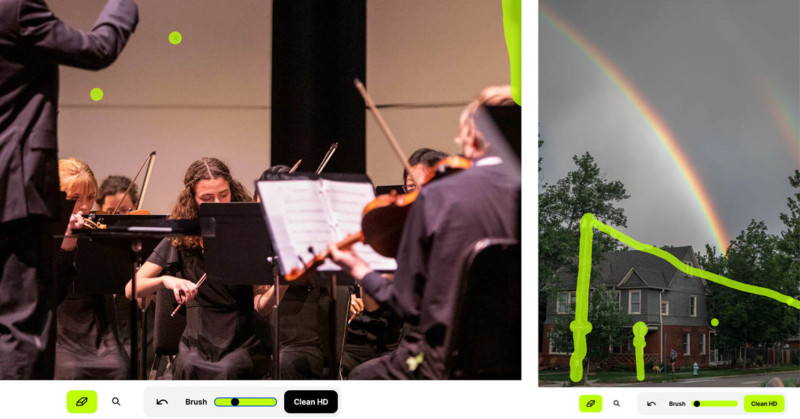
orchestra
 original photo
  Cleanup.Pictures. After clearing the photo in
The microphone was the most distracting element in this image, and it was quickly remedied along with other spots in the background. Additional refinements can be made to help smooth out texture anomalies in the background, but this quick selection works for many situations.

graduation portrait
 original photo
  Cleanup.Pictures. After clearing the photo in
This is a good example of a very difficult scenario. The trash cans are noticeable on the left side of the image, yet their backgrounds are very complex, so removing them and replacing them with a “natural” material-based background is quite difficult. Note how cleanup.pictures did a great job removing bike racks and people, but the trash cans are a bit complicated to fill with a natural-looking background. It’s a reminder that photographers have to work with and accept the limitations of software and equipment, as well as paying careful attention to composition.

Bag
 original photo
  Cleanup.Pictures. After clearing the photo in
In the shoot of this product, the models are walking around a busy city full of distracting elements. For most of the elements removed, only one round of selection was used and Cleanup.Pictures worked great. The most noticeable (non-model) person in the image
was removed with ease and impressive precision (though the selection could always be refined using a smaller brush and more iterations). Cleanup.Pictures really shine when removing text, and there’s a fairly rough selection of unwanted text all to clean up.

rainbow
 original photo
  Cleanup.Pictures. After clearing the photo in
This is a great example of the capabilities of Cleanup.Pictures. All these removals were done with just a few clicks. It was a quick selection painting with the mouse, and only one round of removal was done here. The results are surprising, especially for a tool that is browser-based and is somewhat free.

Support Available for Cleanup.Pictures
One of the biggest features of Cleanup.Pictures is their extensive support. ClipDrop, the creators of Cleanup.Pictures, has created a “Community Slack” channel. If you’re interested in learning more about what’s happening on ClipDrop, asking questions, and more, you can join the community on Slack.
conclusion
Cleanup.Pictures is easy to use, quick, and produces great object, text, and other element removal results. It’s free to use if you don’t need the full-resolution, and the reasonably priced (also discounted until August) full version. Visit Cleanup.Pictures using a search engine to test its capabilities using example images or your own, and start the free trial of the Pro version if you’re interested in testing it out further. Convenience is key when it comes to post-processing, and Cleanup.Pictures combines convenience with power as an object removal tool.