
If you don’t like the latest Oxygen OS 12.1 Android 12 update, here’s how to downgrade OnePlus 7 series to Oxygen OS 11.
The popular OnePlus 7, 7 Pro, 7T, and 7T Pro phones have just received Android 12 update based on Oxygen OS 12.1 via Open Beta 1 firmware. However, the update has not been well received by the members of the OnePlus community, as the firmware is very new and is still in beta. If you feel like the new software is full of bugs or want to revert to stable Android 11, here is a guide to help you downgrade OnePlus 7 device from Oxygen OS 12.1 to Oxygen OS 11.
OnePlus will soon release the stable Oxygen OS 12.1 firmware update for the OnePlus series including the global and European variants. Currently, the open beta update is available only for the Indian variant. If we look at the OnePlus 9 series and 8 series, the stable Android 12 came just after two open beta updates. So stay tuned for the stable version.
Looks like Android 7 for the 12-series isn’t quite stable yet. The most common problems are related to battery drain, low SOT, ambient performance, performance issues, and more. If you’ve already jumped in and want to revert to Android 12, here’s a tutorial to help you out without losing data.
Here’s how to downgrade from Oxygen OS 12.1 to Android 11 on OnePlus 7, 7 Pro, 7T and 7T Pro without losing data. The easiest solution is to download the downgrade package from below and install it using the local upgrade method.
Download OnePlus 7 Series Android 11 Downgrade or Rollback Package
Download Stable OxygenOS 11 Full Stock Firmware Zip To Downgrade To Android 10.
Downgrade Zip – Rollback Package for OnePlus 7 Series:
Note: After downgrading to Android 11, some applications may be lost. You can upgrade to the latest Oxygen OS 11 stable version to reinstall apps by downloading and installing the below packages.
Here are the latest packages for OxygenOS 11 to help you restore lost apps after rollback to Android 11:
Downgrade Zip – Rollback Package for OnePlus 7T Series:
Note: After downgrading to Android 11, some applications may be lost. You can upgrade to the latest Oxygen OS 11 stable version to reinstall apps by downloading and installing the below packages.
Here are the latest packages for OxygenOS 11 to help you restore lost apps after rollback to Android 11:
download rollback application from oneplus
Rollback application from OnePlus will help you to downgrade from Oxygen OS 12.1 to Oxygen OS 11. It officially comes from OnePlus, specially designed for Android 12.
If the above doesn’t work, get the local upgrade app from below. It does the same thing but updated for Android 12.
Rollback to OxygenOS 11 on OnePlus 7, 7 Pro, 7T, 7T Pro without losing data
Step 1 – Backup:
How to back up your data?
OnePlus Switch or Clone Phone helps you to backup and restore contacts, call history, short messages, photos, videos, documents, files, system data and apps. Note that app data will not be backed up. So make sure to sync apps and games that support this feature.
- Download OnePlus Switch or Clone Phone from Play Store. Or download the APK here.
- Go to Settings > Utilities > OnePlus Switch and select Backup & Restore > New Backup.
- Select all the files you want to back up.
- Tap on Start Backup,
- copy [opbackup] folders on your computer in your phone storage
important – Once the backup process is complete, make sure to copy [opbackup] Folder on your computer or PC in your phone storage. Keep this folder so that you can restore backup via OnePlus Switch.
Step 2 – Flash Downgrade Package
Comment: This upgrade method will erase all the contents of the phone, please make sure to back up first.
- Download the appropriate rollback package from the link given below.
- Copy the rollback package to the phone storage.
- download and install it APK From OnePlus. You will need it to roll back.
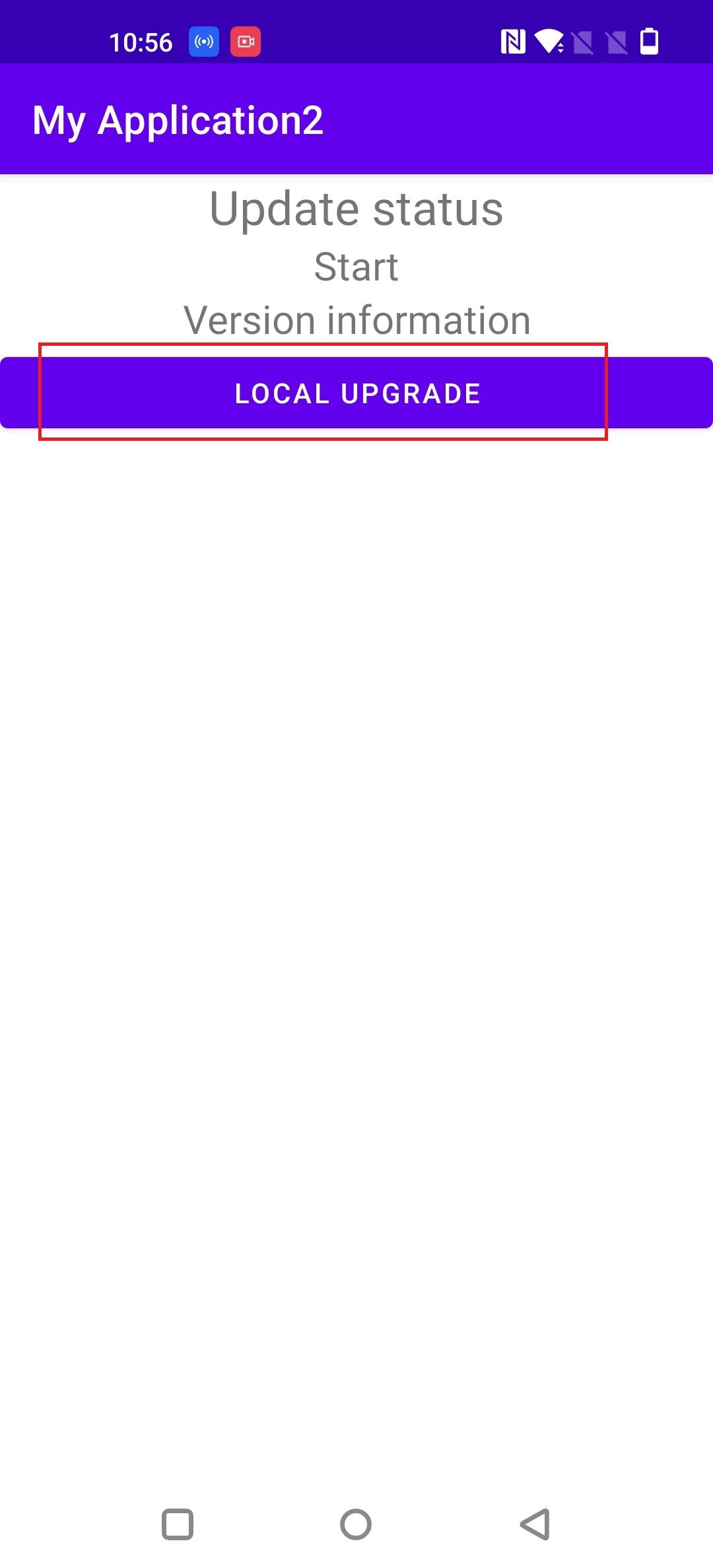
- Then, open the “MyApplication2” app -> tap Local Upgrade, then enter the Recent page -> tap the top-left menu icon -> select your phone model -> find and tap Downgrade Package -> then go to another page and There is an installation option alert, Tap Install now -> Wait for installation to finish -> Tap Reboot
- After the upgrade is complete, click Restart.
- Rollback successful.


 Screenshot tutorial on how to downgrade OnePlus devices
Step 3 – Restore:
- Download OnePlus Switch or Clone Phone from Play Store. Or download the APK here.
- copy [opbackup] Folders from computer to phone storage.
- Go to Settings > Utilities > OnePlus Switch and select Backup & Restore > Restore.
- Select all the files you want to restore.
- Tap on Start Restore.
Join our telegram channel.


