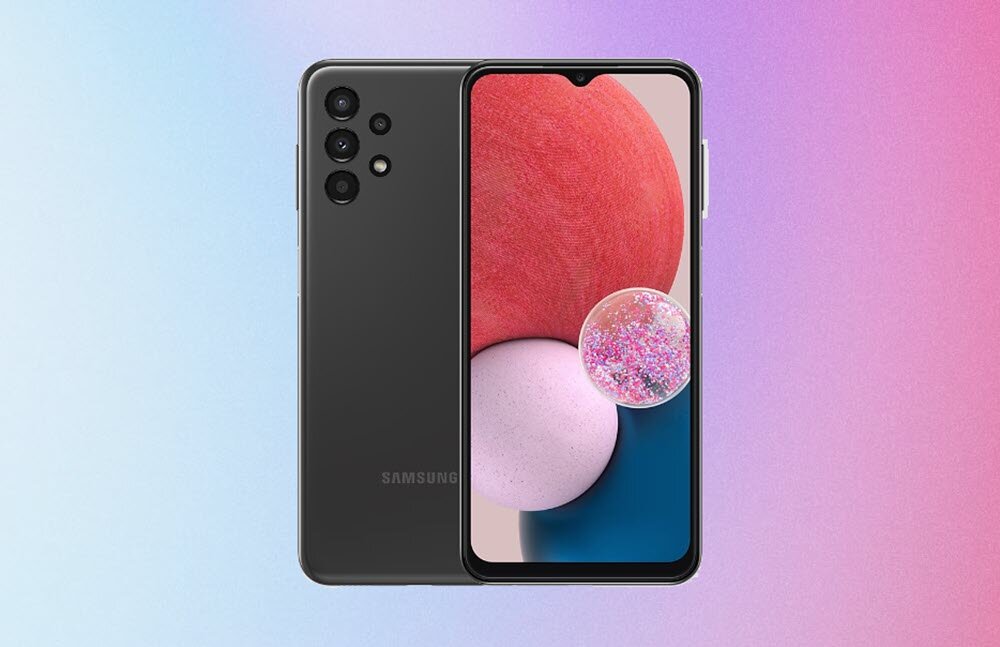
The Samsung Galaxy A13 is one of the most economical brand phones, although with a combination of features that allow daily use without problems. However, you may feel that if you demand it, it loses fluidity and performance.
In this case, there are several tricks that you can apply to improve the performance of your Samsung Galaxy A13. You just need to adjust some details of the settings and improve some of your mobile habits.
Uninstall apps you don’t use
If you notice that your mobile is slowing down, you can start by taking a look at your device to remove apps you don’t use. If you are one of those who try all the apps that appear along the way, and then forget to uninstall them, then you will have several that are not fulfilling any function on the device.
And even if you think that they do not affect your mobile at all, they may be running in the background and consuming system resources. And not to mention that they are taking up storage space. So, as a first step: uninstall the app that you don’t use on your Android mobile. To do this, go to Settings >> Applications and in the tab of each app you will see the option “Uninstall”.
Speed up your Samsung system animations
Another action that you can take when you notice lags on your mobile, or when it is not working smoothly, is adjust animation speed. Although you can completely remove them from the Accessibility options, you can make a small change without going to that extreme.
To apply this action you need to activate the Developer Options, following these steps:
- Go to Mobile Settings and look for the “About phone” section
- Click on “Software Information”
- And on “Build number” press 7 times

If you have followed these steps, you will see that you have enabled Developer Options. A section that you will find in the final part of the mobile Settings.
Once you are inside that section, look for these options: “Transition Animation Scale”, “Window Animation Scale”, and “Animation Duration Scale”. By default they are set to 0.1x, so you will need to change it to 0.5x.
Limit apps that run in the background
Perhaps the problem with the performance of your Samsung mobile has to do with what it has too many apps running in the background. And even if you don’t realize it, they are continuously consuming device resources.
So take a look at the apps that are enabled to start automatically, and run in the background, and leave only those that are essential in that state. Although you can review the apps one by one from the “Applications” section, you can also use the “Background use limits” option that you will find in the “Battery” section.
Delete unnecessary files from your Samsung mobile
Always make sure to keep the internal memory of the mobile as free as possible. The busier the memory is, the more we force the system to carry out a series of checks. So we would be wasting resources if we have memory full of useless files.
To fix this problem, you can use apps like Google Files to delete the cache and all unnecessary files you have on your mobile. Although you can go through each section looking for files to delete, with Files you can save all these steps, since after scanning the mobile it will show you everything you can delete to optimize the device.

You just have to open the app, click on “Clean” and it will give you suggestions of files that you can delete from the device. For example, it may suggest deleting old screenshots, large files, or files you’ve recently downloaded. Or it may recommend that you move certain files to the SD card to free up space on the device’s internal memory.
Use Optimized Third Party Launchers
Samsung’s launcher usually doesn’t cause problems, but sometimes it feels very heavy. So a simple way to regain fluidity when we move around the mobile is to install a third-party launcher.
There are tons of options available on the Google Play Store, but don’t get carried away by the colors and multiple features, instead choose the launcher that is best optimized for your Samsung mobile. You can take a look at the reviews left by users on Google Play to find out which one will be best for your Samsung A13, or you can go for some of the popular launchers, for example, Nova.
Use the Lite version of the apps
If you need to have many applications installed on your mobile, either for your work or studies, you can take this option into account.

It is true that not all apps have a lighter version that you can install on your mobile, but some of the popular social platforms offer this option to the users. For example, you have Facebook Lite, Instagram Lite, Google Maps Go, Spotify Lite, among others.
Although the experience they provide is not the same as what we found in the normal version, they can be useful if you only use the app to take a look from time to time, or do not have much interaction.
Reset the mobile to factory settings
This is not an option that you should take lightly, or use every time the mobile slows down. But if your mobile has had performance problems for a long time, and no change you have made has reversed the situation, then you can try resetting the mobile.
This could be a solution if a virus has slipped in, apps are conflicting, or there is something wrong with the system and you can’t pinpoint the cause. Before using this option, make sure to back up all data and content that you want to keep on the device.