
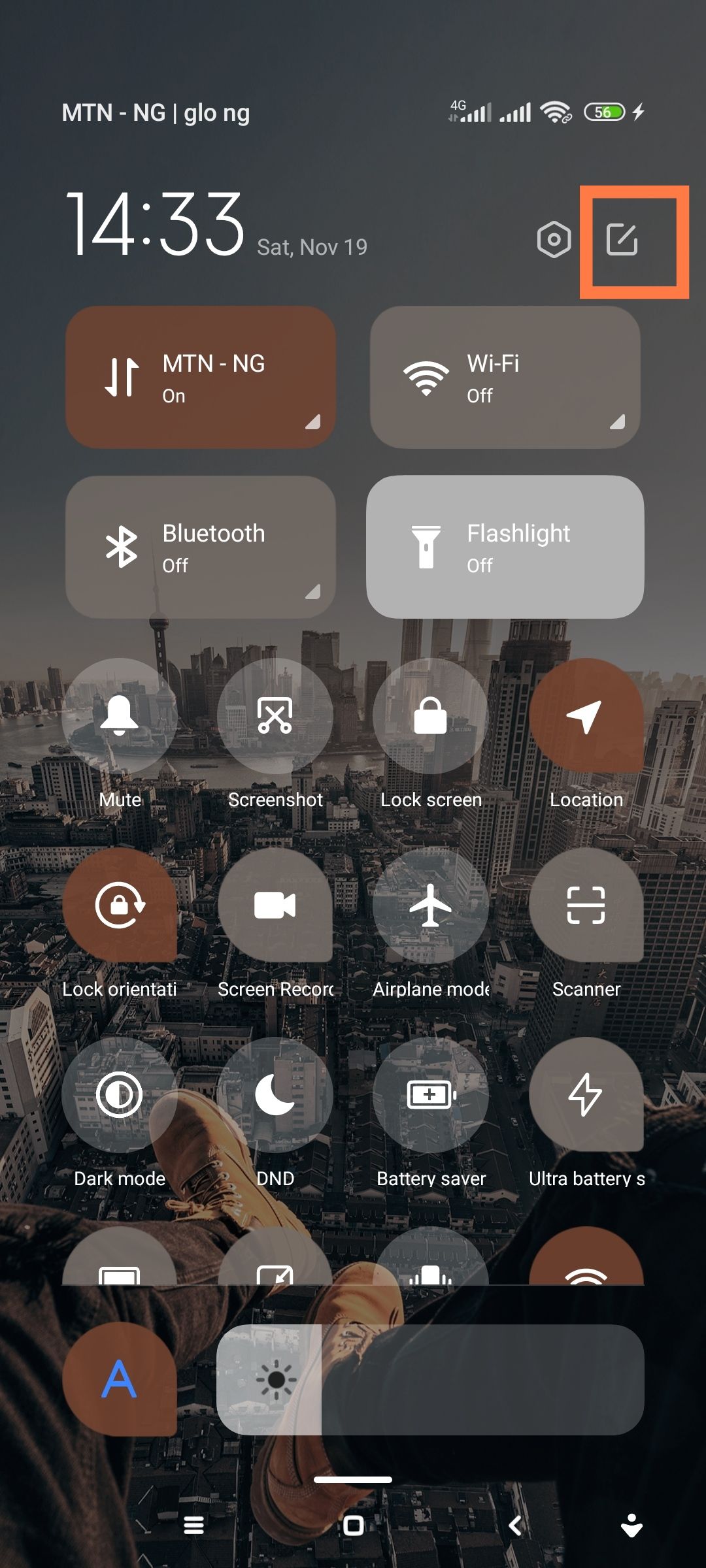
The Quick Settings menu on Android only has limited options for customization. However, it is possible to create and add shortcuts to any task.
Android’s quick settings menu is one of the easiest ways to access a feature or perform a task on an Android smartphone. Swipe down from the top of your screen, tap a quick settings shortcut, and you’re done.
Unfortunately, only a limited number of features can be accessed from the quick settings menu. Depending on the brand of your Android smartphone, you may get more or less features. But what if you could perform an unlimited number of actions from your Quick Settings menu? interested? It is explained here.
Add or remove built-in quick setting shortcuts
If you just need a quick way to add a shortcut to your Quick Settings menu, Android has a hassle-free way to get it by default. For doing this:
- From your Android home screen, swipe down to reveal your Quick Settings menu. You may need to swipe twice for some Android brands.
- tap on edit icon ( Pencil icon). Its position varies depending on the device you’re using, but it’s usually in one of the corners.
- You will now see an interface to both activate and disable quick setting shortcuts.
- On some Android brands, you may need to tap on any available shortcut tile to add them to your Quick Settings menu.
- On other brands, you have to hold and drag the shortcut available from the bottom labeled Hold and drag to join tiles Towards the top is where you have the other available shortcut toggles.


Using this route only lets you go as far as your smartphone manufacturer allows. We’ve previously detailed how to add an app shortcut to your quick settings menu, but even that may just give you an easier way to launch an app and maybe even perform some app-related actions.
If you want the freedom to add almost any action or shortcut to your Quick Settings menu, there’s a solution. One of the most effective ways is to use an automation app like MacroDroid.
Create Your Own Custom Quick Settings Shortcuts Using MacroDroid
If you’re not familiar with MacroDroid, it’s one of the most useful and versatile Android automation apps you can get. It lets you automate almost any task on your Android phone.
How can you use it to add custom actions to your Quick Settings tiles? To start, head over to the Play Store and install MacroDroid. It may ask you to grant several permissions. It needs all of them to function properly, so be sure to grant them that.
We’ll break down the entire process into two primary steps:
- Creating an action block, which will be the action we add to the Quick Settings menu.
- Adding shortcuts to actions in your Quick Settings menu.
Step 1: Create an action block to set up the task
There are countless functions or actions you can create shortcuts for, but for the sake of this demonstration, we’ll keep things simple. We are building an action that records a 30 second voice note of any active conversation. This can be useful for those times when you want to quickly record a conversation without anyone noticing.
- On the MacroDroid home screen, find and tap action block,
- pat , icon in the lower right corner of the screen.
- On the next screen, give your action a name, for this demonstration we’ll call it “Secret Recorder”.
- Optionally, provide a description of your action block or skip step.
- pat , button on the right side of the panel labeled action, will be sent to you add action screen.
The Add Action screen is where you get to choose which action you want to create a shortcut for. There are dozens of possible actions, and you can combine as many as you want to create any action. But we’ll just stick to the action that uses the mic to record for 30 seconds.
- Feather add action screen, find and tap Media > Record microphone > 30 seconds > OK,
- to select standard microphone tap more Ok,
- Next, you will be asked to select your preferred audio file format for recording. you can choose 3gpp, MPEG4either AAC, to select 3gpp,
- On the next screen, tap on the Edit icon and navigate to the folder you want to save your audio recording. tap on use this folder at the bottom of your screen and then tap Ok,
- You will be returned to the action editing screen. Tap on the checkmark icon at the bottom right corner of your screen to save the action.
- you will be refunded action block screen, press the Back button to return to the MacroDroid home screen.


You’ve created an action or task, now it’s time to make it easily accessible via the quick setting menu. For doing this:
- On the MacroDroid home screen, scroll down to find Quick Settings Tiles and select it.
- On the next screen, you’ll find a number of empty Quick Settings tile slots. On the first slot, turn on the switch labeled disabled to enable the slot.
- Type a name for your Quick Settings tile. For this demonstration we will be using “Secret Voice”.
- tap on switch and then tap collapse on press,
- To choose a new icon for your Quick Settings shortcut, tap the icon in the top left corner of the Quick Settings slot, then press the Back button.
Once you get to this point, you’re almost done.
- Now, from your MacroDroid home screen, tap on add macroand enter any macro name you like on the input field labeled enter macro name,
- pat , button on top of triggers Find and tap Panel and then macrodroid specific,
- tap on quick settings tileChoose secret speech (or whatever you named your quick setting shortcut earlier), and then tap ok > ok,
- Next, tap , icon at the top of the panel labeled actiongo to Macrodroid Specific > Action Block > Secret Recorder (the action block we created earlier), and then tap Ok,
With that, your Quick Settings tile is ready to use. Simply swipe down from the top of your screen to reveal your quick settings menu, tap edit Add icon and shortcut tile labels macrodroid tile 1 on your active Quick Settings tile to start using it.


If you use a Samsung device and are having difficulty adding the MacroDroid Tile 1, here’s how to add the Tile to your Samsung Quick Settings menu.
It may seem like a lot of effort to add a voice recorder to your quick setting menu, but this is just one example of what you can do. There is a long list of functions that you can add to the menu and access with just a few swipes.
If you change your font size regularly, you can create a tile that enlarges your font with a single tap. Do you open a certain URL again and again? You can add it to your quick setting menu and instantly open it from your favorite browser. You can also add a button that posts a random tweet to your Twitter account every time it’s tapped. the possibilities are endless.
Take advantage of Android customization
One of the reasons Android is incredibly popular is the huge amount of room it offers for customization. Don’t let it go to waste, take full advantage of all the ways you can customize your phone. Explore more and try new things. MacroDroid and other Android automation and customization apps can help you achieve this.


