Android’s back gesture, formerly the back button, has long been a blessing and a curse. While this gives us system-wide backward navigation, the actions can sometimes be unpredictable. But Google may have a solution with its new Predictive Back Gesture, which gives you an animated glimpse of where you’re going next to help you decide whether to continue or stay with the current view.
The new predictive back gesture, which is expected to be enabled by default when Android 14 arrives in late 2023, is currently available in only a few of Google’s apps, including:
Third-party app developers will need to update their apps to support the new feature, and they can test an early version of the back-to-home animation through Android 13’s developer options. Since Android 13’s developer options can be accessed by anyone, you can also try it out as long as you’re running Android 13 on Google Pixels and other phones running Android 13. To try it out, follow the instructions below.
Android 13 (API level 33) introduces a predictable back gesture for Android devices such as phones, large screens, and foldables. It is part of a multi-year release; When fully implemented, this feature will let users preview the destination or other result of a back gesture before fully completing it, allowing them to decide whether to continue or stay in the current view .
– Android Developers
Step 1Enable gesture navigation
If you are using button-based navigation on your Android 13 device, you will need to switch to gesture navigation to try out Android 14’s upcoming predictive back gestures. Here’s how to do it on a few different models:
- Google Pixel Model: Settings -> System -> System Navigation -> Gesture Navigation (pictured below)
- OnePlus Model: Settings -> System Settings -> System Navigation -> Gestures (“Switch to previous app” should also be toggled on)
- Samsung Galaxy Model: Settings -> Display -> Navigation Bar -> Swipe Gestures
- Sony Xperia Model: Settings -> System -> Gestures -> System navigation -> Gesture navigation
- Xiaomi Model: Settings -> Home screen -> System navigation -> Gestures
Step 2Unlock Developer Options
If you don’t already have the Developer Options menu unlocked on your Android 13 device, you’ll need to find the “Build number” information in your Settings app, then tap it quickly seven times in a row. If successful, a toast message will appear confirming that you are a developer.
- Google Pixel Model: Settings -> About phone -> Build number (picture below)
- OnePlus Model: Settings -> About device -> Version -> Build number
- Samsung Galaxy Model: Settings -> About phone -> Software information -> Build number
- Sony Xperia Model: Settings -> System -> About phone -> Build number
- Xiaomi Model: Settings -> About phone -> All specs -> MIUI version
Step 3Enable Predictive Back Gestures
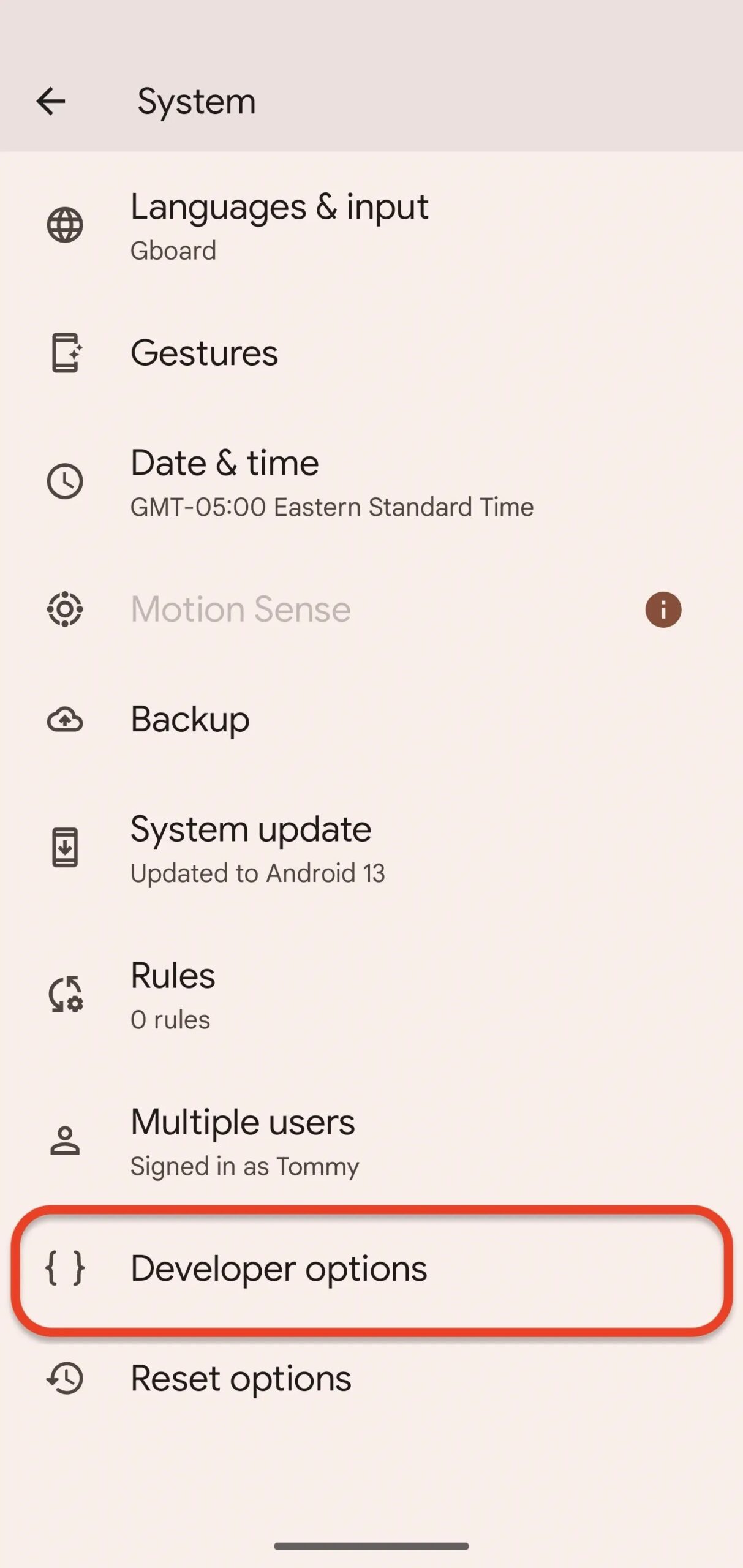
You need to open Unhidden Developer Options to enable the new predictive back gesture animation. The location of the Developer Options menu will also vary depending on your device. For example:
- Google Pixel Model: Settings -> System -> Developer Options (pictured on the bottom left)
- OnePlus Model: Settings -> System Settings -> Developer Options
- Samsung Galaxy Model: Settings -> Developer options (pictured at bottom right)
- Sony Xperia Model: Settings -> System -> Advanced -> Developer options
- Xiaomi Model: Settings -> Additional Settings -> Developer Options

Once in the Developer Options menu, find and select “Predictive Back Animation” under the Apps heading. (You can also use your Settings app’s search function to get there.) A prompt will explain what it does and how developers can enable it in their apps; Press OK.”
Step 4: Engage Your Predictive Back Gesture
To try out Android’s upcoming predictive back gesture feature, open one of the apps listed above that currently supports it. This has also worked for me for the Settings app on some Google Pixel models, as you can see in the GIFs below, but it hasn’t worked consistently on all of our Pixels.
Next, swipe in from the left or right edge of the screen to activate, and you’ll see the app shrink into a card in the background, revealing the destination of the back gesture. Release your finger to complete the action (GIF below) or swipe back to the edge to stay in the app (GIF below).


If you find any other apps that support predictive back gestures, let us know, and we’ll add them to our list!
Don’t Miss: How to Unlock YouTube’s New Ambient Mode for a More Immersive Experience (Or Disable It If You Don’t Like It)
Protect your connection with no monthly bill, Get a lifetime subscription to VPN Unlimited for all your devices with a one-time purchase from the new Gadget Hacks Shop, and watch Hulu or Netflix without regional restrictions, enhanced security when browsing public networks, and more.
Buy Now (80% Off)>
Other worthwhile deals to check out:
Cover image, screenshot and GIF by Tommy Palladino/Gadget Hacks